Watching video
Everything you can do on the SARSTREAM viewer page. To get in, see Quick start: open your link and watch.
Ways in
| You have… | Do this |
|---|---|
| A viewer link (email, text, chat) | Tap it. |
| A QR code (poster, a teammate's screen) | Scan it with your phone camera. |
| A 6-digit join code | Go to your agency's page (sarstream.org/ + your agency's short name) or sarstream.org/join, and type it in Have an access code? |
| Your email on the team's list | On your agency's page, type it under Email > Send me a link. The link works for 24 hours. |
| A mission-start email | Tap Open SARSTREAM in it. |
While the page is open your access keeps renewing itself. It ends when the mission ends, or when an admin turns your link off.
Sign out or switch agency
Tap ⋮ > Sign out / switch agency. You land on the sign-in page (Signed out) and can enter a code or request a link for any agency — use this if you help more than one agency. It signs this browser out of SARSTREAM completely, including an admin page open for another agency (sign in there again).
Pick a feed
Each video area (a pane) has a drop-down at the top. Tap it and pick a feed. The list shows only feeds that are live right now; phone feeds have a 📱 in front of the name. Map shows the map instead of video — see The map & replay.
When you open the viewer, empty panes fill with live feeds by themselves.
Split the screen
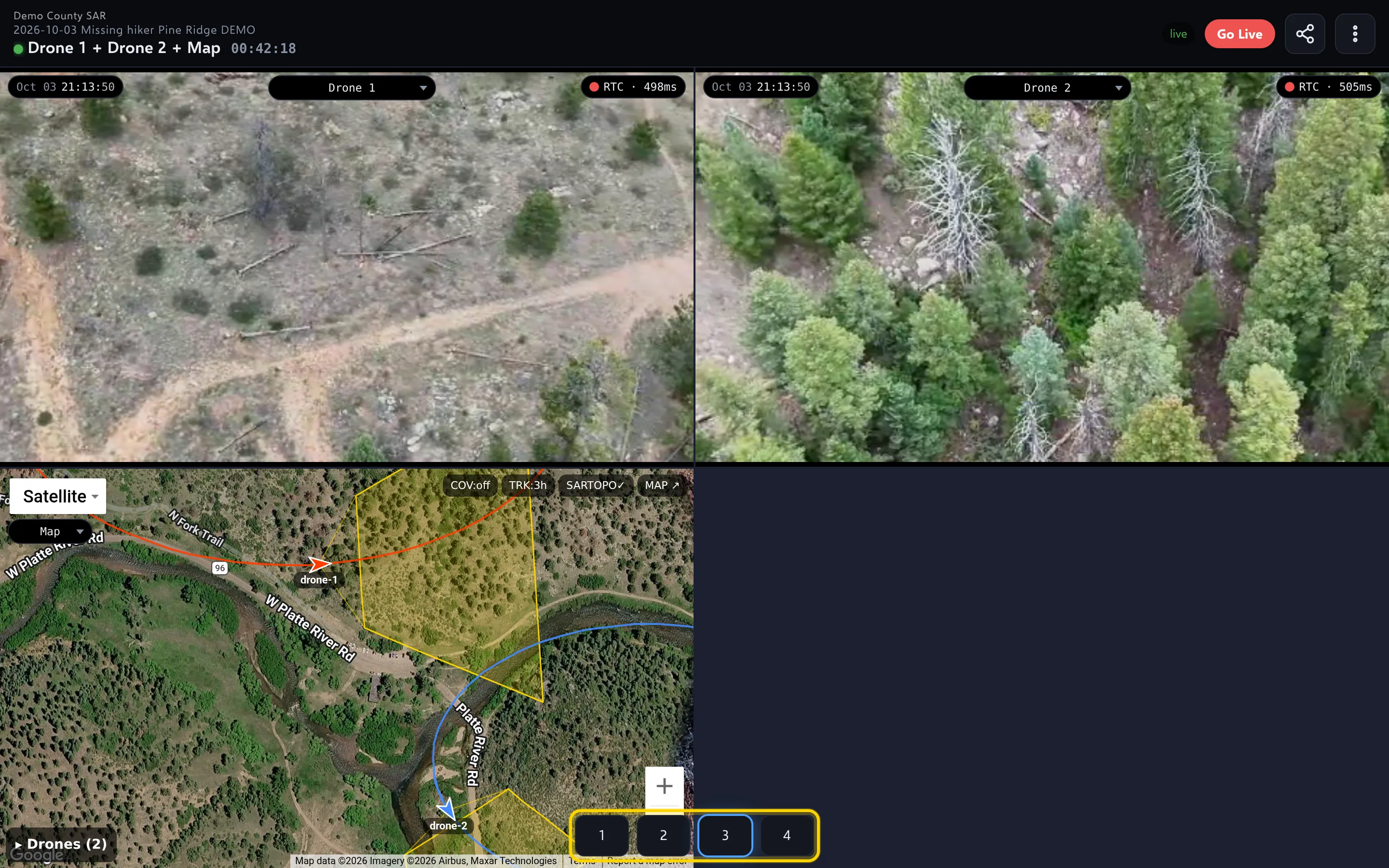
Use the numbers at the bottom of the screen to choose how many panes you see: 1 or 2 on a phone, 1 to 4 on a computer. The viewer remembers your choice on this device.
Zoom in
- Phone or tablet: pinch with two fingers inside one pane, up to 6×. Drag with one finger to move around. Pinch back out to return to normal.
- Computer: scroll the mouse wheel over the video.
Changing the feed or rotating the phone resets the zoom.
Full screen
| Device | Go full screen | Leave |
|---|---|---|
| iPhone | Turn the phone sideways. | Turn it upright. |
| Android | Turn the phone sideways, then tap the video once. Or ⋮ > Fullscreen. | Turn it upright, or press Back. |
| Computer | Double-click the video, press F, or ⋮ > Fullscreen. | Press Esc or F, or double-click. |
On a phone held sideways, the top bar (menu, share, mission name) is hidden. Turn the phone upright to use it.
iPhone tip: for a full screen with no Safari bars, add SARSTREAM to your home screen: in Safari, tap Share > Add to Home Screen. If the home-screen app asks you to sign in, use the join code.
Take a screenshot
Tap ⋮ > Take screenshot.
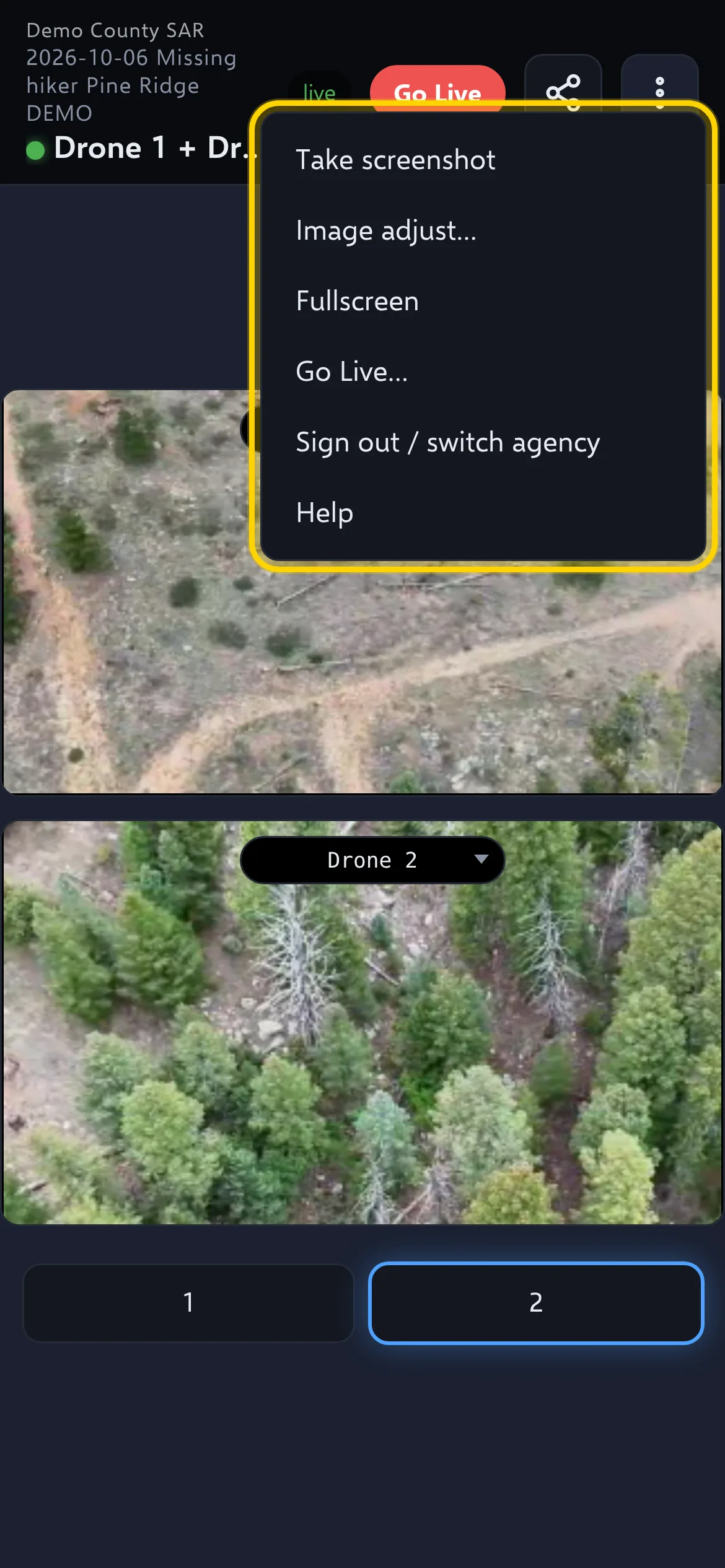 You get one picture of the video panes, with
the mission name, feed and time written on it. On a phone it opens the share
menu (save it or send it); on a computer it downloads.
You get one picture of the video panes, with
the mission name, feed and time written on it. On a phone it opens the share
menu (save it or send it); on a computer it downloads.
Map panes are not included — use your device's own screenshot for the map.
Brighten or adjust the picture
Tap ⋮ > Image adjust… and move Brightness, Contrast or Saturation. It changes every pane and your screenshots, only on your screen. Reset puts it back. It is not saved when you leave.
Sound
Only phone (Go Live) feeds have sound, and every pane starts muted. Tap 🔇 in the pane to unmute it. One pane plays sound at a time.
If video won't play
If a pane says Paused by pilot, the pilot paused that drone's video on purpose (the drone is still on the map). It comes back when the pilot or an admin resumes it.
Each pane has a small chip at the top right, like RTC · 120ms — that is how far behind live the video is. Tap it for details.
If a pane keeps saying Reconnecting… or No signal, the network may be blocking live video (common on guest and hospital Wi-Fi):
- Tap the chip.
-
Tap HLS. The video is a few seconds further behind, but it plays on more networks.
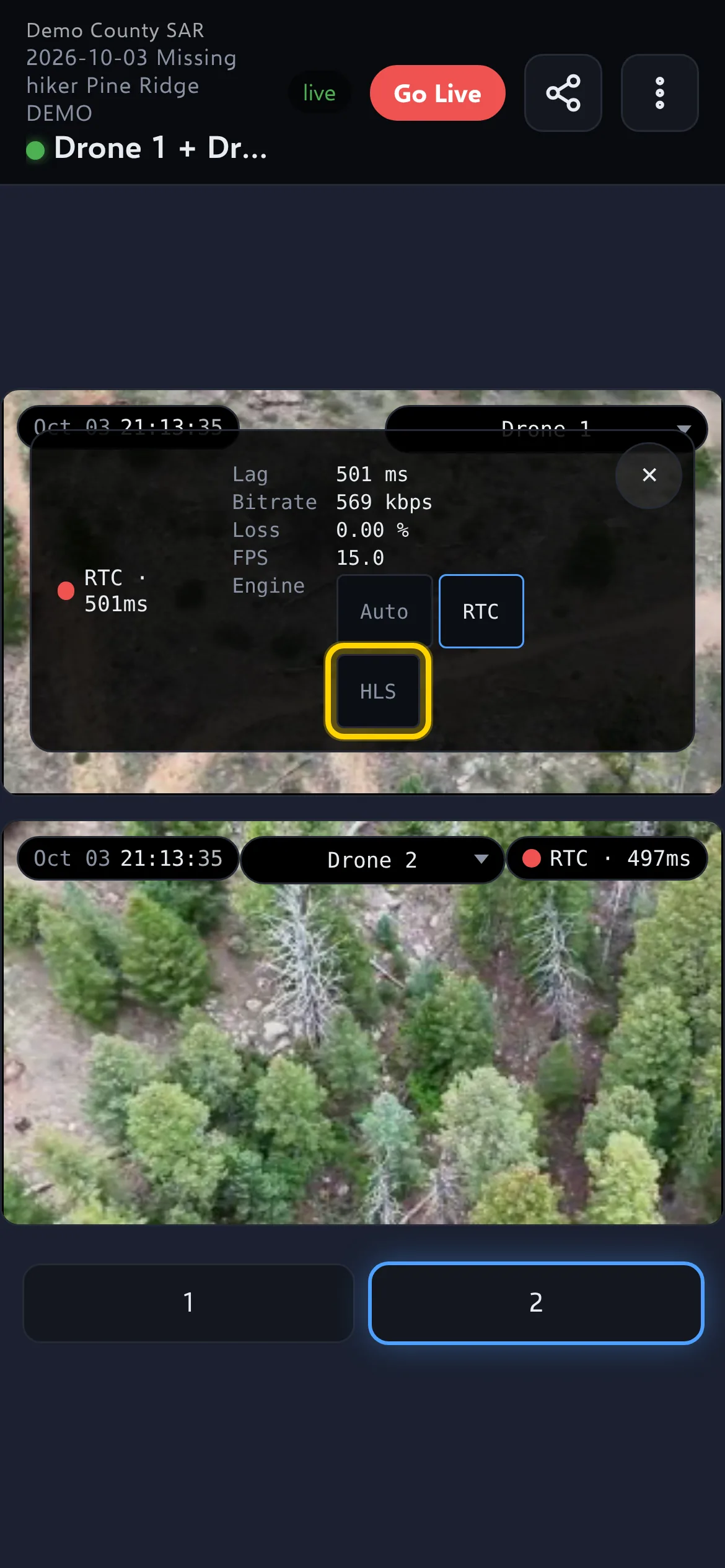
SARSTREAM remembers this choice for that feed on this device. Tap RTC to go back.
Share access with someone nearby
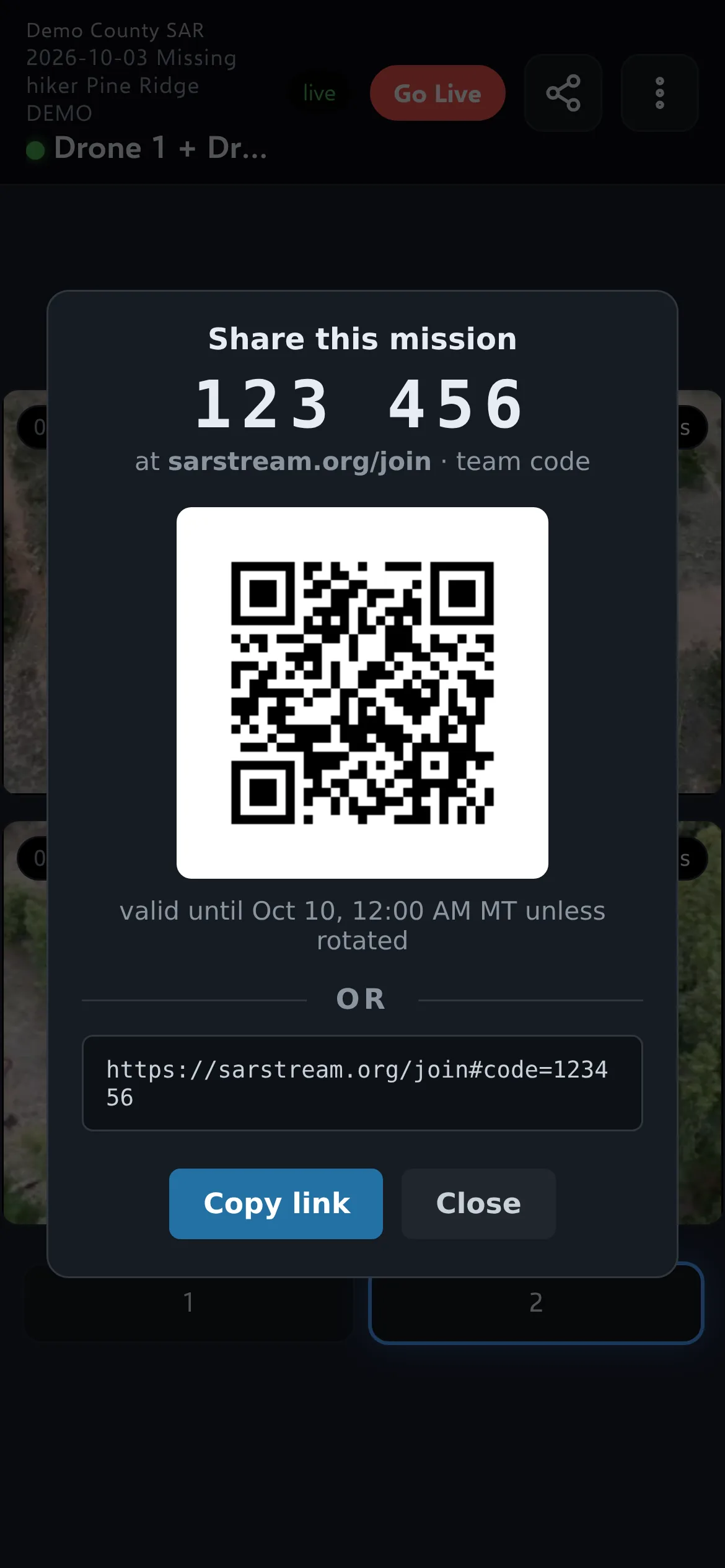
Tap the Share button (three linked circles) at the top. You see the 6-digit code and a QR code. Let them scan it, read them the code, or tap Copy link and send it. The code changes when the mission ends.
Start a mission or go live (only some viewers)
- If no mission is open and you signed in from an emailed link, the viewer shows Start mission and Start mission — do not record. People who joined with a code don't see these.
- If your admin turned on Go Live for you, a Go Live button at the top lets you stream your phone's camera — after the first time it starts in one tap; ⋮ > Go Live… shows the options first. See Quick start: Phone (Go Live).
Get help
Tap ⋮ > Help to open this help in a new tab. On the full map page, the ? button at the top opens the map help.
Keyboard shortcuts (computer)
| Key | What it does |
|---|---|
| 1–9 | Show that feed (in list order) in the pane you clicked last |
| ← / → | Previous / next feed in that pane |
| F | Full screen on or off |
| Esc | Leave full screen |