Quick start: stream from a body cam, GoPro or encoder
You'll end with: your camera's video showing in SARSTREAM.
Takes: about 10 minutes. Every device's menus are different.
This works for body cams, GoPro cameras, HDMI encoder boxes, and phone or computer apps that can stream RTMP (for example Larix). It sends video only — no map position and no photos.
Before you start
- Your agency's access key. Ask your agency admin for the key's setup page — a link, or the QR code on a printed key card. (The admin page calls it a publish key.)
- A device that can stream RTMP with H.264 video. Look for "Live stream", "RTMP" or "Custom RTMP" in its settings or app.
- Internet on the device — Wi-Fi or cellular.
Steps
- Open the setup page: scan the QR code on the key card, or open the link
your admin sent you. It looks like
https://sarstream.org/publish-setup?key=…. - Under 1 · Pick your stream name, type a name for this camera, like
bodycam-1. You see ✓ "Bodycam 1" is yours. Everyone watching sees that name. -
Under 2 · Type this into your streaming app, tap Copy URL. The address looks like
rtmp://sarstream.org/<key>/<name>.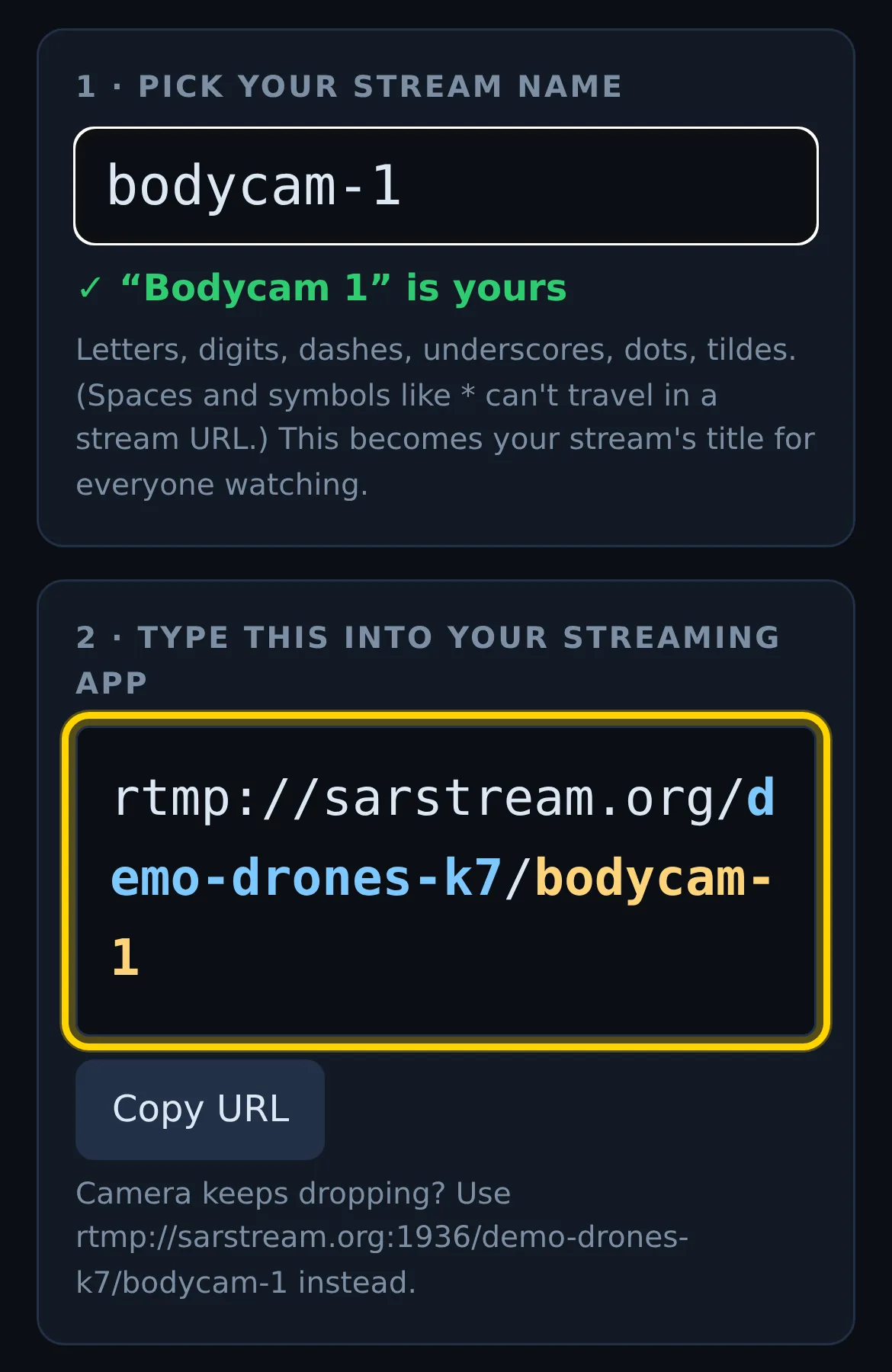
-
In your device's live-stream settings, choose RTMP (or Custom RTMP) and paste the address. Some apps have two boxes. Put
rtmp://sarstream.org/<key>in Server (or URL), and your name in Stream key. - Start streaming on the device.
Good settings
H.264 video, 720p or 1080p, 30 frames per second, a keyframe every 1–2 seconds. About 2 Mbps on cellular, up to 4 Mbps on good Wi-Fi. If the device sends sound, use AAC.
Check it worked
Under 3 · You're on, the setup page changes from waiting for your stream… within a few seconds. If you are signed in to SARSTREAM, it shows a live preview of your video. If not, it says You're live and asks you to sign in to see the preview.
If SARSTREAM refused the camera, the page says why under the waiting line — for example Refused by SARSTREAM: This key was revoked or has expired — ask your admin for a new one.
Or ask someone watching to look for your camera's name in their feed list.
If it didn't work
- The device says "connection refused" or fails right away. Re-type the address exactly — one wrong character means "refused". The key part must be lowercase. If it is right, the key may be revoked or expired: ask your admin for a new one.
- "✓ OK to stream — this name is used on another key…" You can stream;
your feed is listed under a numbered name (like
bodycam-1-2). - "⚠ … is live right now from another device" — another camera is using that name on your key right now. Pick a different name unless you are reconnecting that same camera.
- "Refused by SARSTREAM: …" under the waiting line — the reason, in words: the key was revoked or expired, an admin stopped this feed, your agency is at its live-feed limit or paused, or the key has capital letters (type it in lowercase).
- "✗ Your agency is paused on SARSTREAM — contact your admin." on the setup page — your agency's account is paused. Your admin needs to contact SARSTREAM support.
- The camera connects, then drops within a second, again and again. Some
cameras (certain body cams) need SARSTREAM's second RTMP port. Use the
same address with :1936 after the host —
rtmp://sarstream.org:1936/<key>/<name>. The setup page shows it under Camera keeps dropping? Every agency's key works there. - The stream dropped in the middle. Reconnect with the same address. Your name stays yours.
Your admin can see refused attempts on the admin page: the Live feeds card lists rejected publish attempts from the last 24 hours, with the reason.
More fixes: Something's wrong.