Quick start: go live from your phone
You'll end with: your phone's camera showing LIVE to everyone in the mission, and your position on the map.
Takes: about 3 minutes the first time; one tap after that.
Before you start
- A mission is open. Go Live never starts a mission. If you signed in with an emailed link, the viewer shows Start mission when none is open; otherwise ask your admin, or wait for a drone to connect.
- You are signed in to SARSTREAM on this phone with your viewer link or join code. See Quick start: open your link and watch.
- Your admin allowed Go Live for how you signed in. If you don't see a Go Live button at the top of the viewer, ask your admin.
- iPhone: use Safari. Android: use Chrome.
For admins: where Go Live is turned on
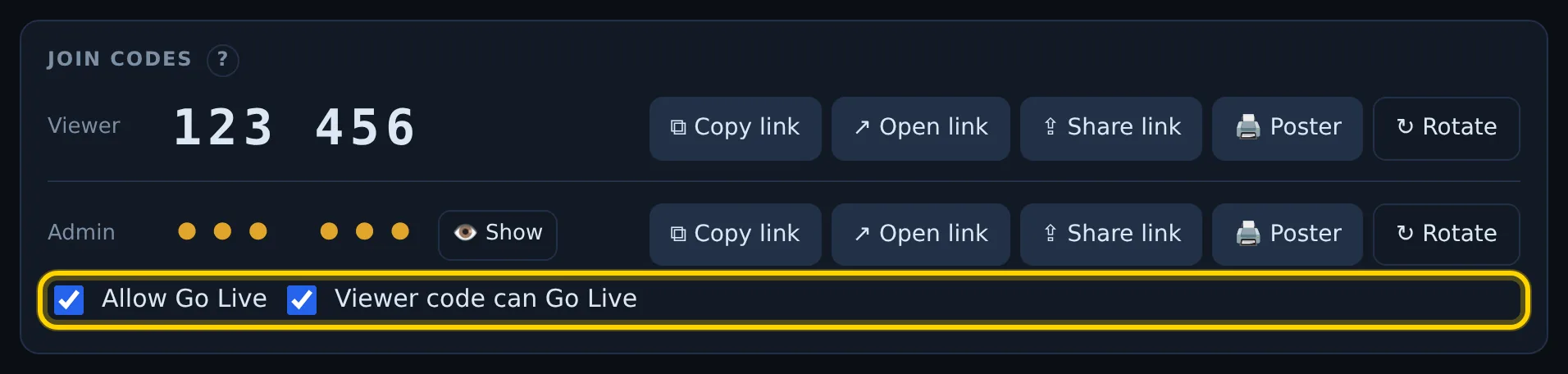
On the admin page, Join codes card: Allow Go Live turns it on for your agency, and Viewer code can Go Live lets people who joined with the viewer code use it. People on a personal viewer link need the Go Live box ticked on their link in Viewer links.
Steps (the first time on this phone)
-
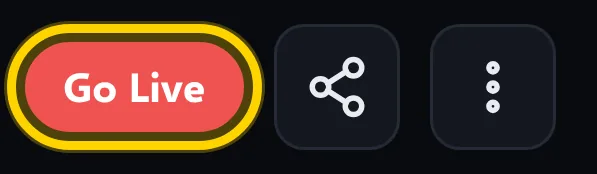
Hold the phone upright. On the SARSTREAM viewer, tap Go Live at the top. If the button is dim, no mission is open.
-
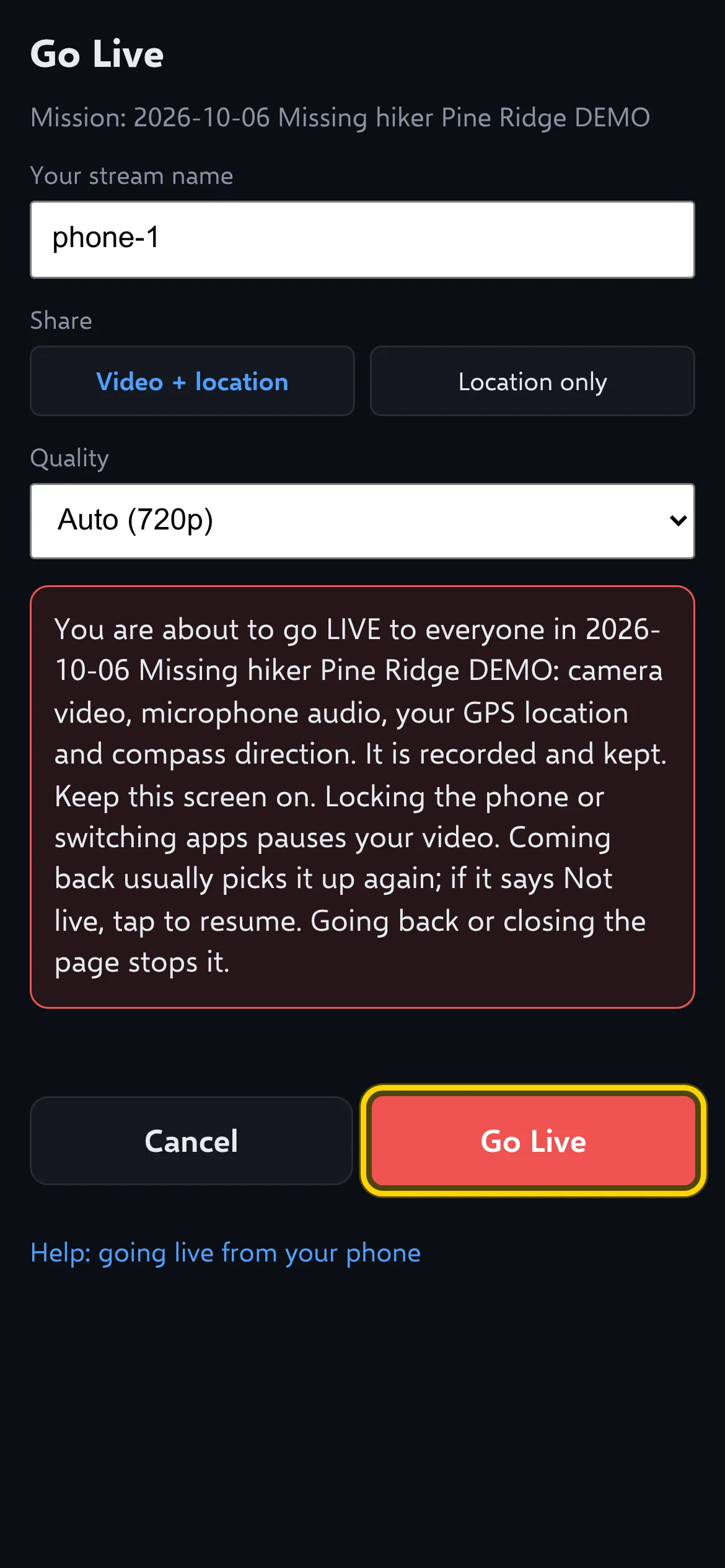
Check Your stream name — for example
phone-1. Change it if you like (letters, numbers and dashes). Everyone sees it as your feed's title. - Under Share, keep Video + location. Pick Location only to share just where you are, with no camera.
- Keep Quality on Auto (720p). On a weak signal, pick Data saver (360p).
- Read the red box: who will see and hear you, and whether it is recorded.
-
Tap Go Live. The phone asks for the camera and microphone first, then your location — allow them.
iPhone, no more prompts: in Safari tap aA > Website Settings and set Camera, Microphone and Location to Allow. The pre-flight screen shows this tip once.
Next time: one tap
Tap Go Live at the top of the viewer: you are live at once, with the same Share and Quality as last time. To change them first, use the ⋮ menu > Go Live… (the full screen above).
Check it worked
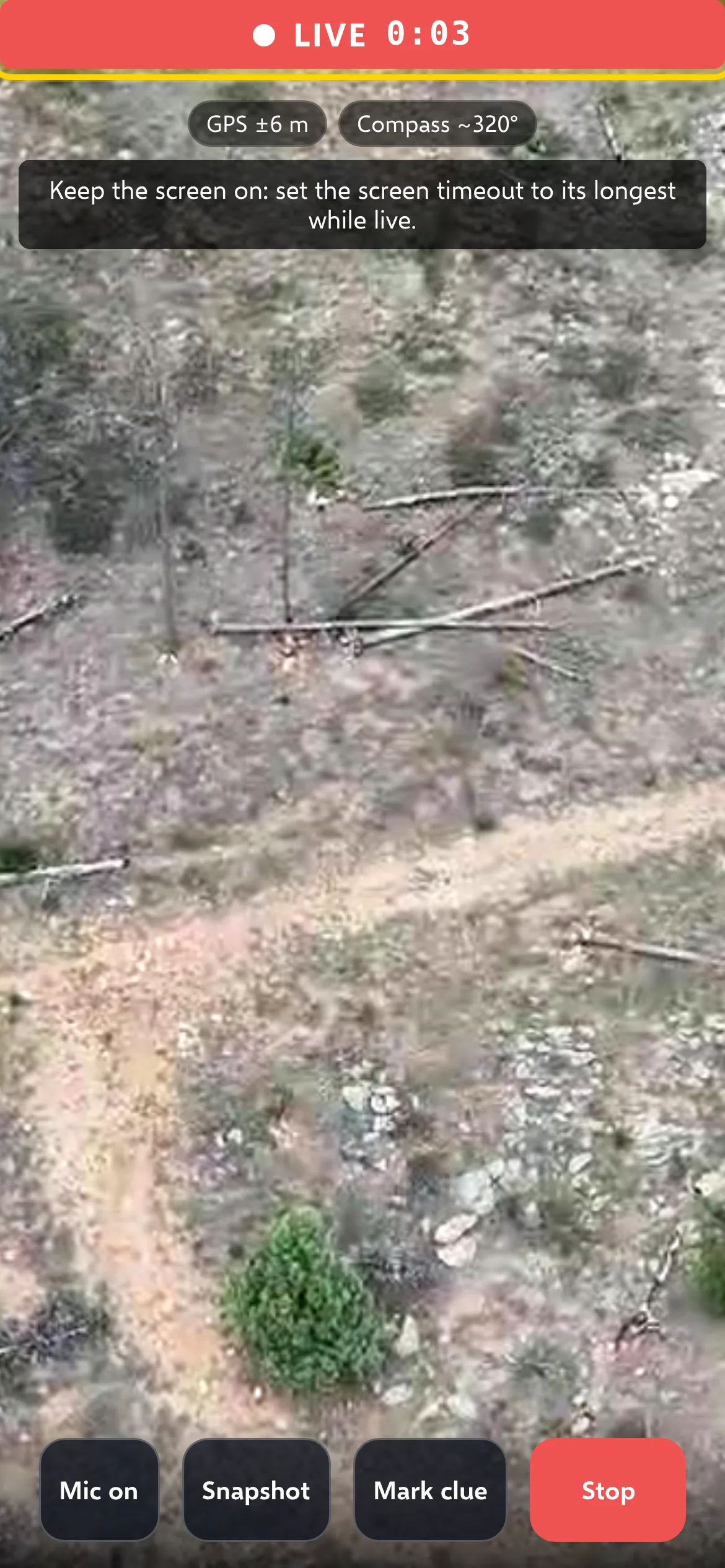
A red LIVE banner with a running timer is at the top, with a GPS chip under it. Ask someone watching to look for your feed — phone feeds have a 📱 in front of the name. With Location only the banner says Waiting for GPS fix… until the phone knows where it is, then SHARING LOCATION.
Keep the screen on
Locking the phone or switching apps pauses your video. Coming back usually picks it up again; if it says Not live — connection lost. Tap to resume, tap the screen. Going back or closing the page stops it.
While live:
- Flip switches between the front and back camera (phones with two cameras).
- Mic on / Mic muted turns your microphone on or off. Mic blocked means the phone didn't allow the microphone — video still goes out.
- Tap for compass (iPhone): tap the chip once to share which way the camera points. The direction on the map is approximate.
- Snapshot sends a still photo; Mark clue sends one marked as a clue (red on the map). Both appear only when the mission is recording.
- Stop: tap it, then tap Tap again to stop within 3 seconds. Go Live again then puts you straight back on.
If it didn't work
- "Go Live is switched off for this link." — ask your admin to allow it.
- "No active mission — a phone cannot start one." — start one from the viewer (Start mission, emailed links) or ask your admin.
- "Your agency is paused on SARSTREAM." — contact your admin.
- "Camera is blocked…" (or Microphone, Location) — follow the steps on the screen. iPhone: Settings > Safari > Camera > Allow. Android: tap the lock icon next to the address bar > Permissions. Then reload the page.
- "Couldn't start the stream — check your signal and try again." — move to better signal, or switch from Wi-Fi to cellular. Networks that allow only web browsing block Go Live.
- Waiting for GPS fix… for a long time — step outside or near a window. A position older than 30 seconds is never sent; the map greys your marker.
- "Connection lost — reconnecting…" — SARSTREAM keeps trying for about a minute. If it says Not live — connection lost. Tap to resume, tap the screen.
More fixes: Something's wrong.