Quick start: stream from a DJI controller
You'll end with: your drone's video showing LIVE in SARSTREAM, and the drone on the map.
Takes: about 10 minutes the first time, under 2 minutes after that.
Tested on DJI RC Plus 2 with Matrice 4T. Other DJI Pilot 2 controllers should work but are untested.
Before you start
- Your agency's access key. Your agency admin gives it to you. (The admin page calls it a publish key.)
- A drone name, like
drone-1orm4t-thermal. Use lowercase letters, numbers and dashes. Everyone watching sees it as the feed's title ("Drone 1"). - Internet on the controller: a cellular dongle, Wi-Fi, or a Starlink or hotspot Wi-Fi.
- DJI FlightHub 2 disconnected. Pilot 2 connects to only one cloud at a time. If the controller is logged in to FlightHub 2, log out of it first.
Steps
Part 1 — Open the SARSTREAM page (first time only)
- On the controller, open DJI Pilot 2.
- On the home screen, tap Cloud Service. On a controller that has never connected, it says Not Logged In with Cloud Service under it.
-
Tap Open Platforms.
photo of the DJI Pilot 2 home screen with Cloud Service (or SARStream) — take one on the RC Plus 2; Pilot 2's own screens can't be generated -
Type
https://sarstream.org/dji/pilot.html, or select it if it is already in the list. Pilot 2 opens the SARSTREAM Pilot page. It shows Loading current status… for a few seconds.
Part 2 — Connect
-
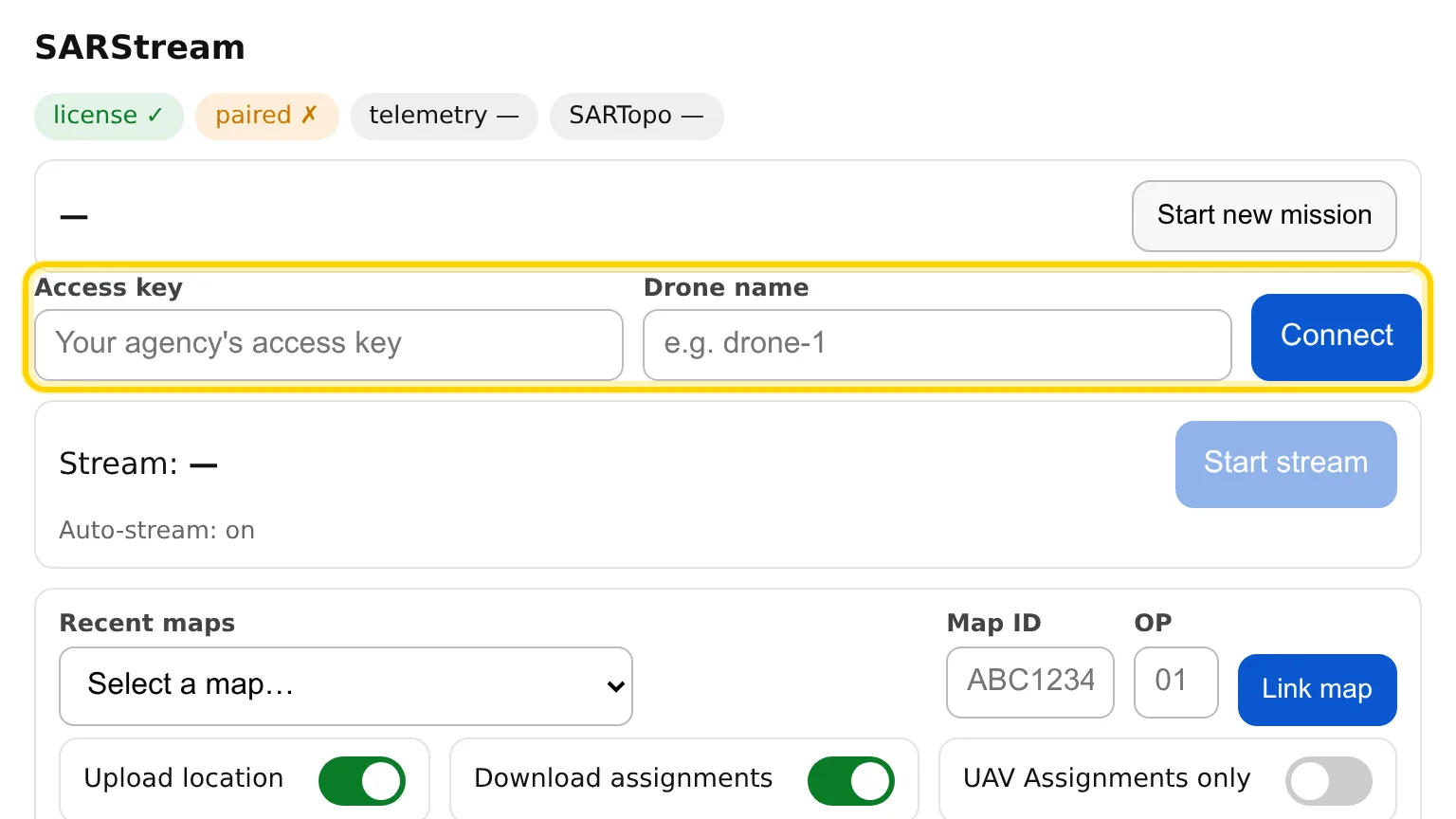
In Access key, type your agency's key. Capital letters are fine — the page changes them to lowercase. After a moment you see Pairs with: and your agency's name. If you see Key not recognized — check it with your agency (or try again), check the key with your admin.
-
In Drone name, type the name for this drone.
-
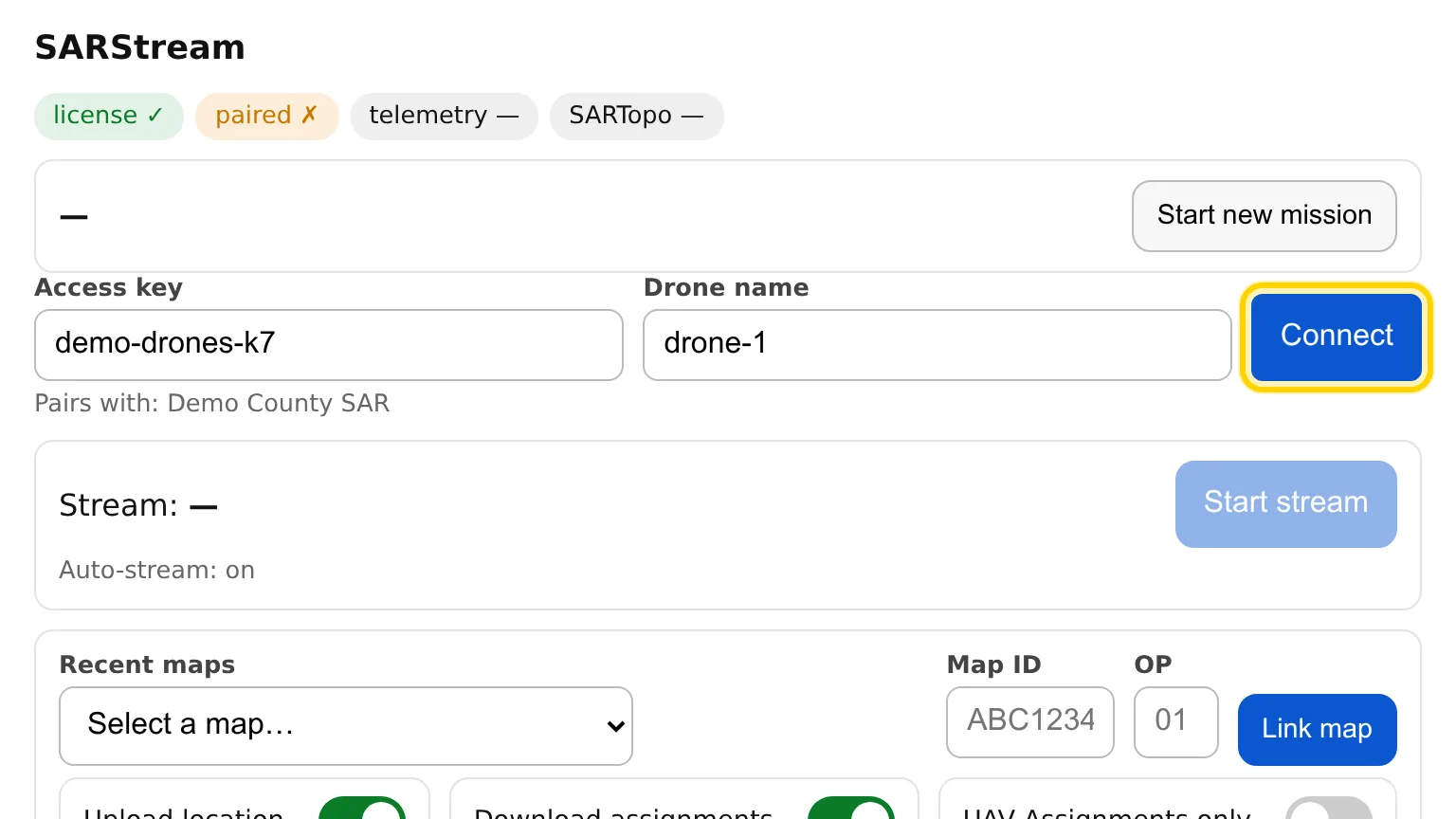
Tap Connect. The button changes to Disconnect. The mission name appears at the top of the page. If no mission was open, connecting opens a new one. If another controller in this mission already uses that drone name, yours gets a number — the page says, for example, “drone-1” is used by another controller — this one streams as “drone-1-2”. and the Drone name box shows the new name.
-
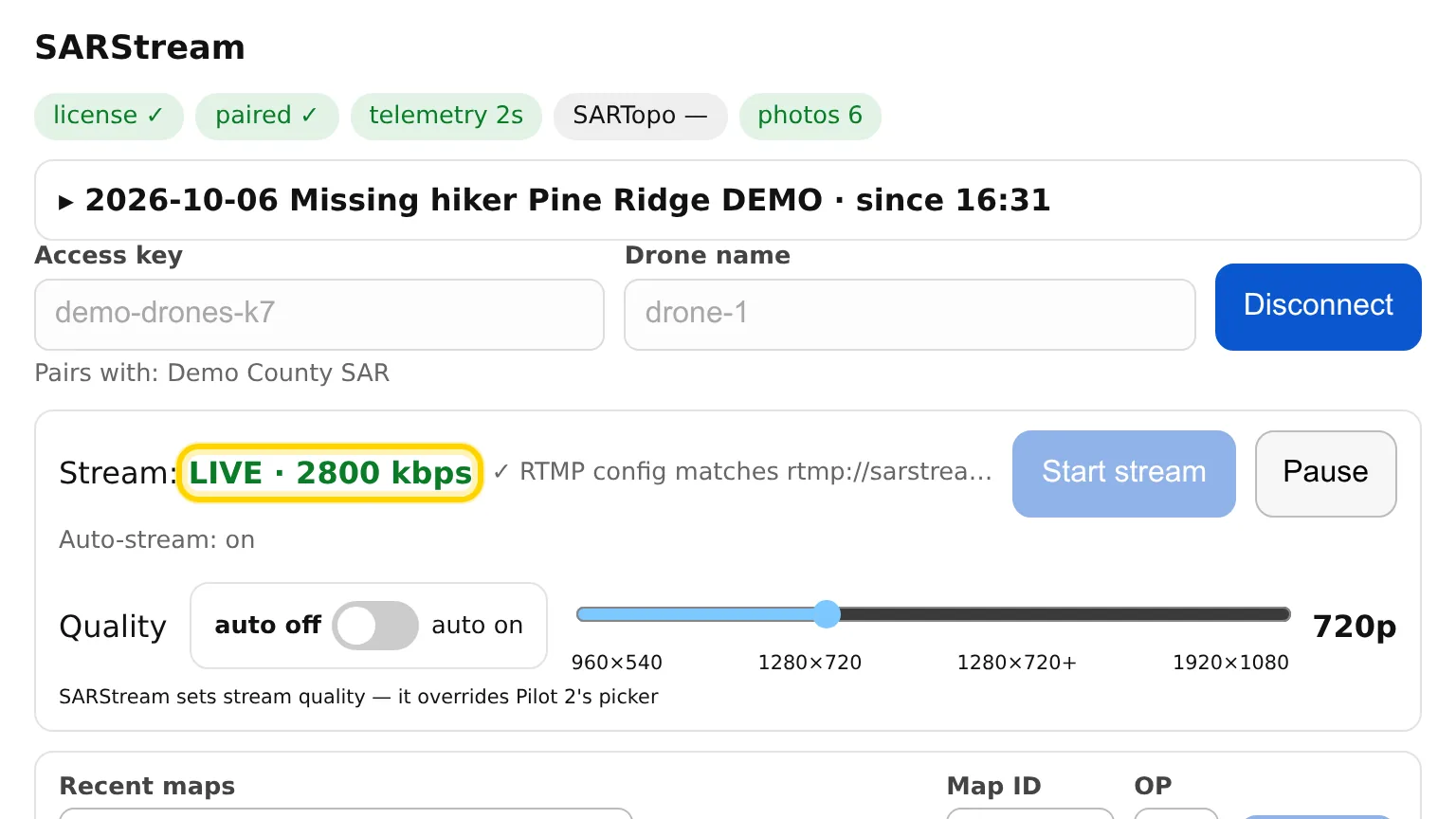
Stay on the SARSTREAM page and wait. The video starts by itself — you don't need to tap anything. Pilot 2 says live stream started, and Stream: shows LIVE.
Check it worked
- Pilot 2 said live stream started.
- Stream: shows LIVE and a speed in kbps, in green.
- The telemetry chip is green once the drone is on (the map can see it).
- Ask someone watching to look for your drone's name in their feed list.
To fly, use the back arrow at the top of Pilot 2. Leaving the page does not disconnect: the video and the map keep running.
To stop the video for a while, use Pause on this page — see Pause the video. The page also warns when the drone's SD card is nearly full.
Next time
- Power on the controller and the drone.
- On the Pilot 2 home screen, tap SARStream (where it said Not Logged In the first time). The SARSTREAM page opens — your key and drone name are remembered.
- Wait for live stream started.
If it didn't work
- "Restart the Pilot app (swipe it away and reopen) — the cloud link is stuck." Swipe Pilot 2 away in the recent-apps list, reopen it, and tap SARStream again. Common on a new controller's first connect.
- "Pairing refused: invalid key" — mistyped, revoked or expired. Ask your admin for a new key.
- "This agency isn't active on SARSTREAM right now — contact your admin." — your agency's account is paused. Your admin needs to contact SARSTREAM support.
- "Refused by SARSTREAM: …" after a start fails — SARSTREAM said no; the reason follows (for example the key was revoked, an admin stopped this feed, or your agency is at its live-feed limit). Tell your admin.
- "Your agency is paused on SARSTREAM — contact your admin." — your agency's account is paused; the page reconnects by itself once it is back.
- "Cloud link down — video started with Pilot's own live push…" — your video is still going out, but the map and the quality slider wait for the cloud link. If the message stays, restart Pilot 2 as above.
More fixes: Something's wrong.
Next
- During a mission — battery swaps, renaming the drone, sharing the view, photos.