Missions
A mission holds everything from one callout: the live video, recordings, drone tracks, flights and photos. Join codes and viewer links belong to the open mission — ending it cuts viewers off.
Mission names look like 2026-10-03 Drone Mission DEMO: the date, a
description, and your agency's short name.
Start a mission
Usually you don't have to: a mission starts by itself when no mission is open and a drone powers on, a camera starts streaming, or a pilot connects the Pilot page. A DJI controller that is only switched on (drone off) doesn't start one, and neither does a phone. Viewers who signed in from an emailed link can start one from the viewer (Start mission).
To start one yourself:
- On the Mission card, optionally type a name in Name (optional) (for example "Missing hiker Pine Ridge").
- Select Start mission (or Start mission — do not record, see below).
If a mission is already open, the buttons read New mission and New mission — do not record. They end the current mission and start a new one — see End and start new.
Rename it
Select ✎ Rename, type a short description (for example "Missing hiker Pine Ridge"), and press Enter. Viewers see the new name.
↻ Reset timer restarts the mission clock from now. Nothing else changes.
Record on or off
Record this mission is on by default: video, tracks, flights and photos are saved.
Turn it off for sensitive work (it asks first). Live viewing still works, but nothing new is saved, drone positions stop going to SARTopo, and a red NOT RECORDING badge shows on the admin page, the viewer and the pilots' screens. Turning it off never deletes what was already recorded. Start mission — do not record starts a mission with it off.
Turning it back on just works — no question — unless the mission was started as do-not-record: then it asks Record this mission? once.
SARTopo line
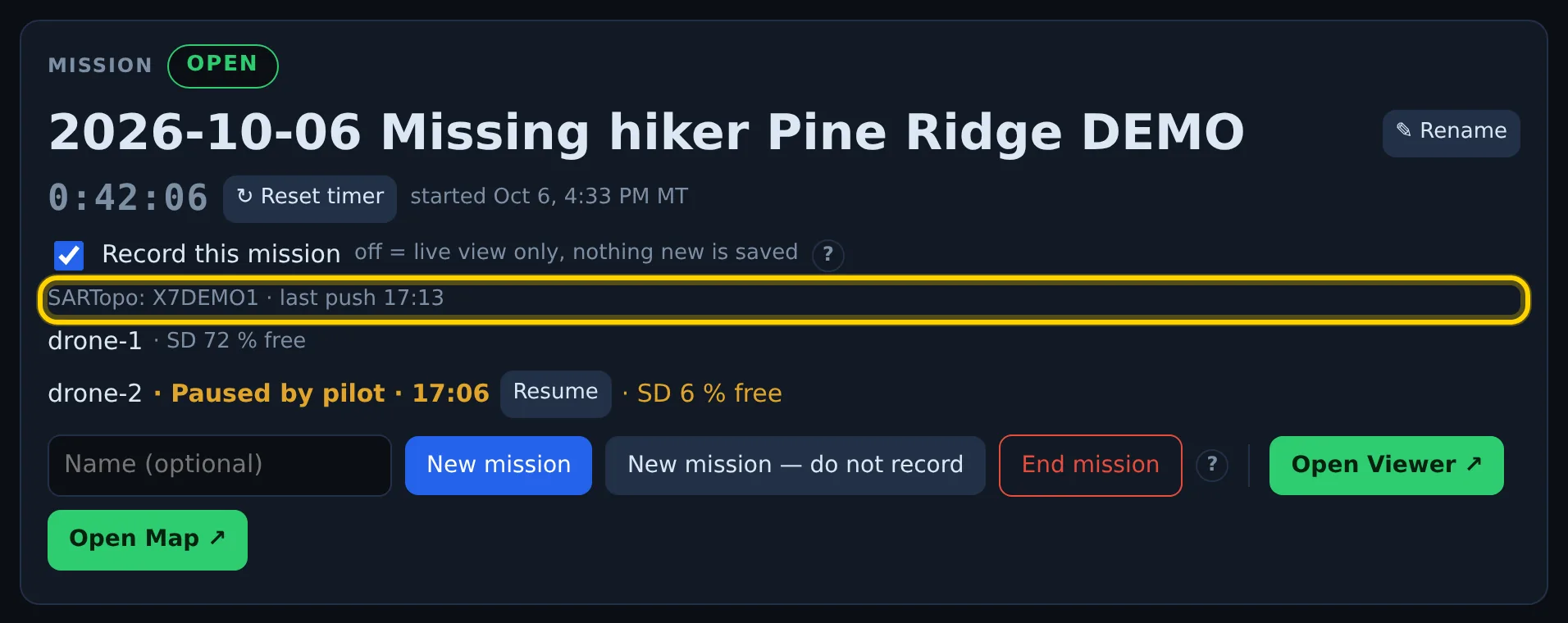
While a mission is open, the Mission card shows one SARTopo line (only if your agency uses SARTopo):
| You see | Means |
|---|---|
SARTopo: <map> · last push 14:02 |
Positions and tracks are reaching that map; the time of the last one. |
| SARTopo: push failing — … | SARTopo is answering with an error; the reason follows. |
SARTopo: map <map> refused access — share it with the team account, then Test |
Share the map with your agency's SARTopo team account, then select Test connection in Settings. |
| SARTopo: push off | Push is off in Settings. |
| SARTopo: not set up | Your agency has no SARTopo account in Settings. |
| SARTopo: not linked | The mission has no map yet. Use <map> again links the last mission's map in one tap (nothing happens by itself). |
Drones
Below the SARTopo line, the Mission card lists every drone in the open mission, one line each:
| You see | Means |
|---|---|
drone · SD 72 % free |
The drone's SD card has room. |
drone · SD 6 % free (amber) |
Less than 10 % free — photos stop uploading when it's full. |
| · SD full — photos won't upload (red) | Tell the pilot to swap or clear the card at the next battery swap. |
| · Paused by pilot · 14:02 Resume | The pilot paused the video at that time (the map and photos keep going). |
To bring a paused drone's video back, select Resume, then Resume in the box. Any admin can do this. The video starts within a few seconds — or when the drone is powered on again, if it is off. A pause also ends when the pilot taps Start stream on the Pilot page, or when the mission ends.
End a mission
Ending the mission cuts off every viewer
All viewer links stop working, both join codes change, and phones that are live stop. Admins stay signed in.
- Have the pilots land and power off their drones and cameras.
- On the Mission card, select End mission.
- The box names the mission, when it started, how many viewers are connected and which phones are live. Select End mission. It ends at once.
If the mission changed while the page was open (someone else started a new one), nothing is ended and the page says The mission changed while this page was open — check the Mission card and try again.
"Still streaming" and "Can't end yet"
SARSTREAM won't end a mission while a drone or camera is still streaming, so nobody cuts off a live search by mistake. The answer appears in the same box.
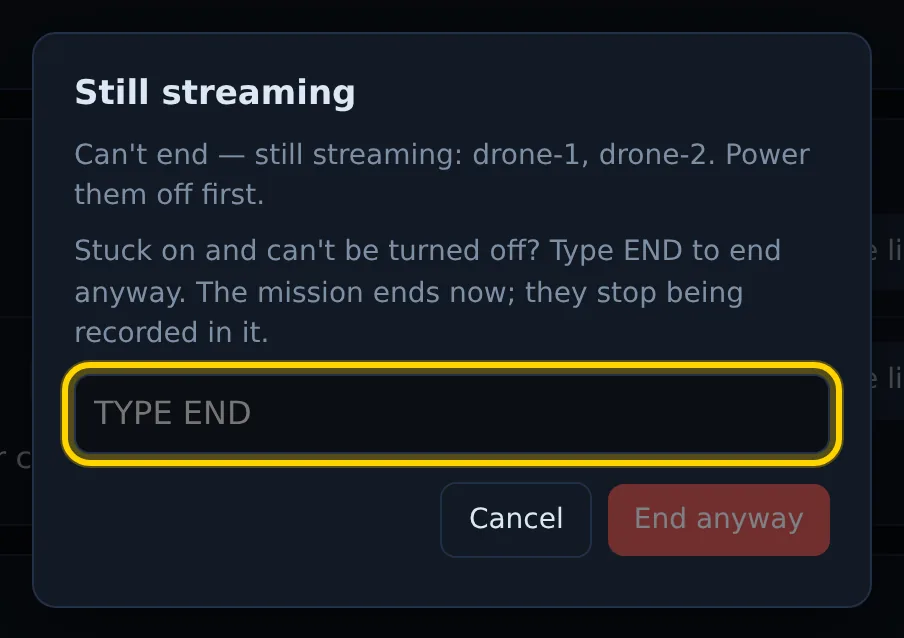
- Still streaming — the named sources are still on. Have them powered
off, then try again. If something is stuck on and can't be turned off,
type
ENDin the box and select End anyway. Whatever is still streaming at that moment is not recorded. - Can't end yet — a source just went off. The box counts down; when it reaches zero, select End now.
A DJI controller that is on by itself (drone off) and phones never block End. Live phones are named in the box and stop when the mission ends.
End and start new
New mission ends the open mission and starts a new one at once. It asks
first (End & start new), and follows the same rules as End: it is
refused while a drone or camera is streaming. If you type END to force it,
the streaming drones and cameras carry on into the new mission. Viewer links
stop working and both join codes change.
Missions that end by themselves
A mission with no drone, camera or phone activity for 4 hours ends by itself. (A controller that is just switched on doesn't count as activity.)
Mission emails
In Settings, Mission emails is a list of up to 10 addresses. When a mission starts, each address gets an email with a viewer link and the viewer code. Addresses that are admins on your allow list also get an admin link and the admin code. When the mission ends, they get the wrap-up summary (if Mission wrap-up email is on).
To add an address, type it and select Add. To remove one, select ✕ on it (no question — add it again to undo).
Past missions
The Missions card lists the newest 100 missions. Use it to rename, label and hide old ones:
- ✎ next to a past mission's name renames it. Type the new name and press Enter. This changes the name in SARSTREAM's lists only: the wrap-up email already sent and the SARTopo folders keep the old name.
- Tag — a label only: Rescue, Law, Test, Training or Other.
- Hidden from viewers — the mission disappears from the viewers' replay list and every replay link. Admins still see it. Use it for tests and training.
The open mission's row can't be changed.
From the controller
Pilots can't end a mission or start over from the Pilot page — only an admin ends a mission. When no mission is open, a pilot's Connect or Start mission opens one. See During a mission.