Pilots, keys & feeds
A publish key is a word that lets a drone or camera send video to your agency. Pilots type it on the Pilot page (where it is called the access key) or into their camera's streaming address. One key can carry many feeds — each drone or camera adds its own name.
Phones don't use keys — see Phones.
Create a key
- Select Publish keys to open the card.
- Type a key word: 6 to 20 lowercase letters, numbers or dashes, for
example
demo-drones-k7. Pick something that is hard to guess — the key is the only thing that lets a camera in. - In label (whose key), say who it is for ("County drones", "Body cams", "Visiting pilot").
- Choose how long it works: Forever, 24 hours or 3 days. Use a short one for guests.
- Select Create key.
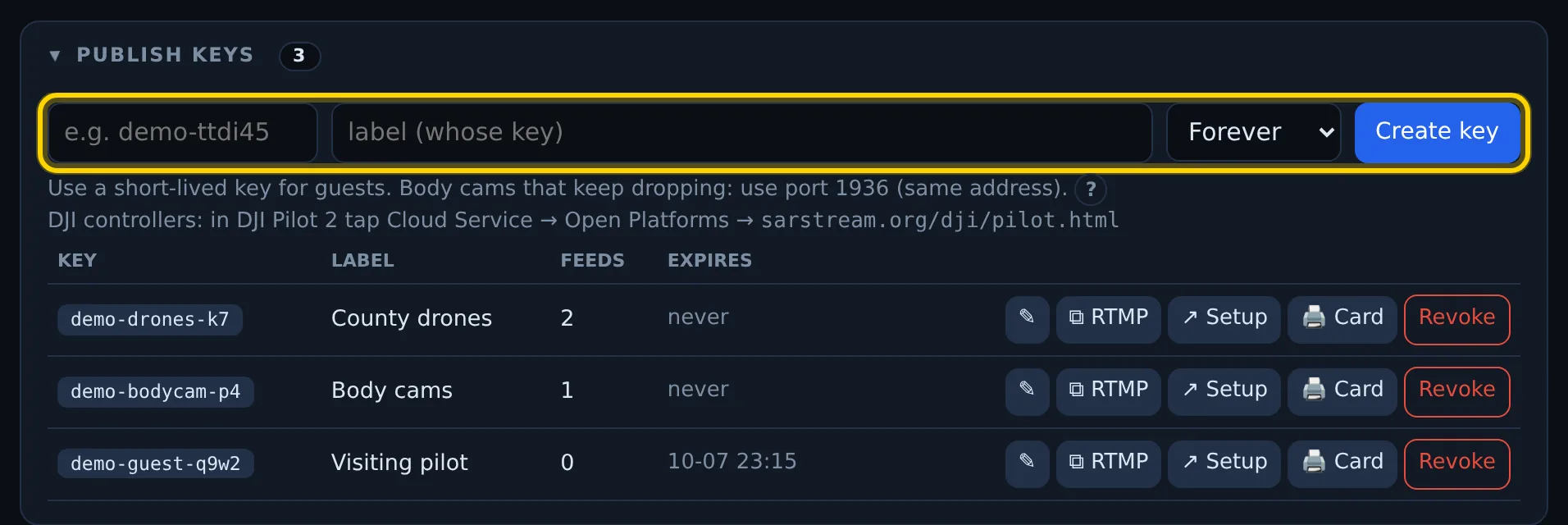
If you see That key word is already in use — pick another. or That word is reserved by SARSTREAM — pick another., choose a different word.
Give the key to a pilot
Each key has these buttons:
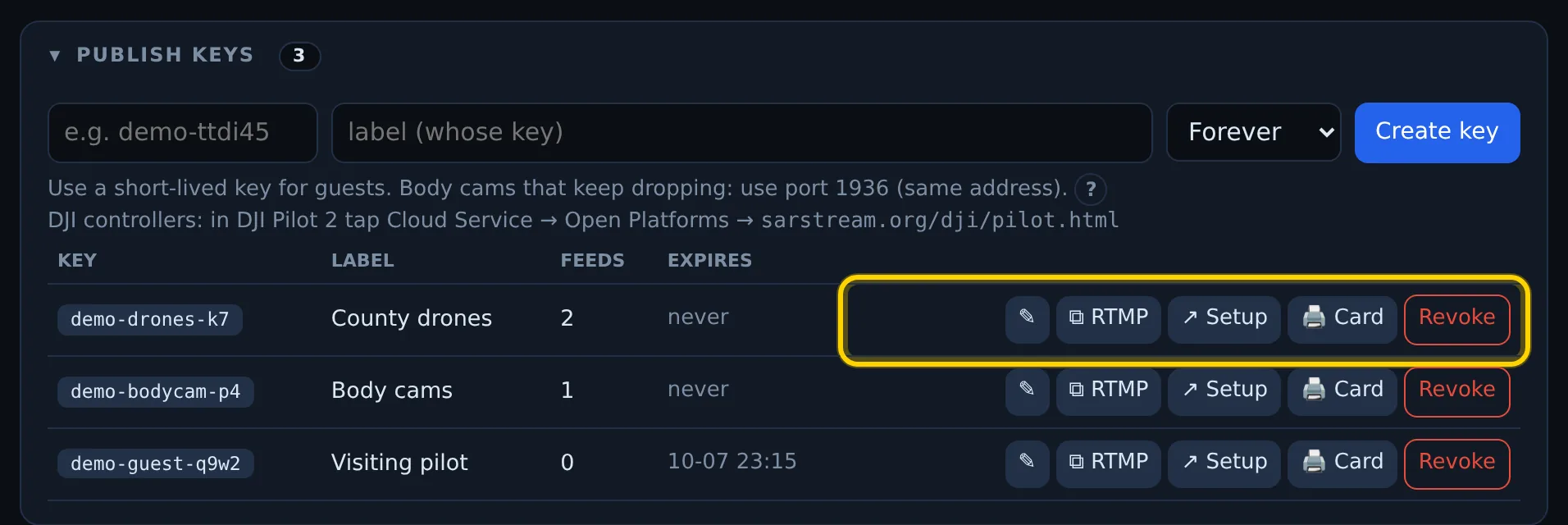
| Button | What it does |
|---|---|
| ✎ | Change the label. |
| ⧉ RTMP | Copies the streaming address rtmp://sarstream.org/<key>/<drone-name> for a body cam or encoder. The pilot replaces <drone-name>. |
| ↗ Setup | Opens the key's setup page, which walks a body cam or GoPro user through it. |
| 🖨 Card | Prints a key card: the key, the streaming address, and a QR code to the setup page. |
| Revoke | Stops the key now. Anything streaming with it stops now. You can create the same key word again later, but its feed names are gone. |
The printed key card also shows DJI pilots where to go in Pilot 2
(Cloud Service > Open Platforms > sarstream.org/dji/pilot.html), the
side-door address for cameras that keep dropping, and the help address. The
same Pilot 2 line is on the Publish keys card.
Revoke a key that is in use
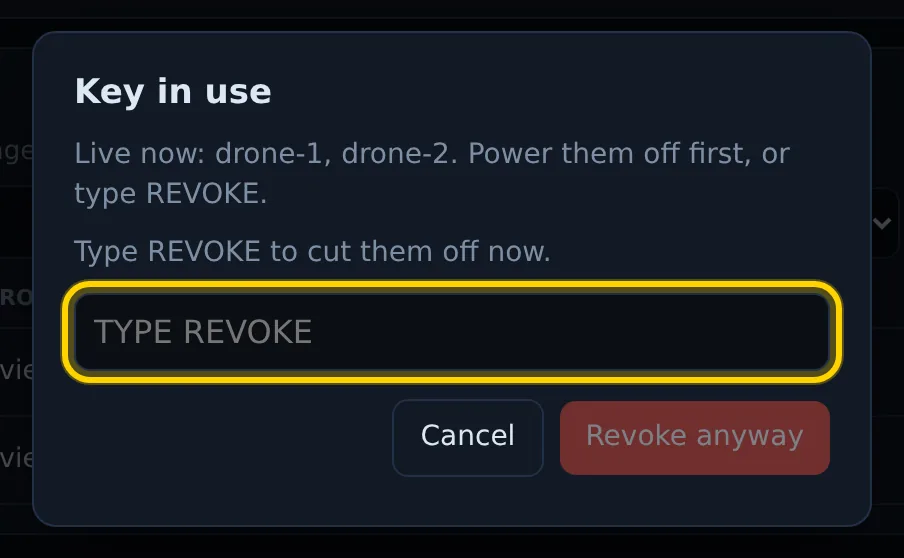
If a drone or camera is streaming with the key right now, Revoke opens
Key in use with what is live (for example Live now: drone-1). Power
those off first and try again — or type REVOKE in the box and select
Revoke anyway to cut them off now.
Then send the pilot to the right quick start:
- DJI controller: Quick start: DJI controller
- Body cam, GoPro, encoder: Quick start: Body cam, GoPro, encoder
Body cams that keep dropping: use port 1936 (same address with :1936
after the host — rtmp://sarstream.org:1936/<key>/<name>). Every key works
there; the setup page and the key card show the address.
Live feeds
Live feeds lists every camera streaming right now, with its speed.
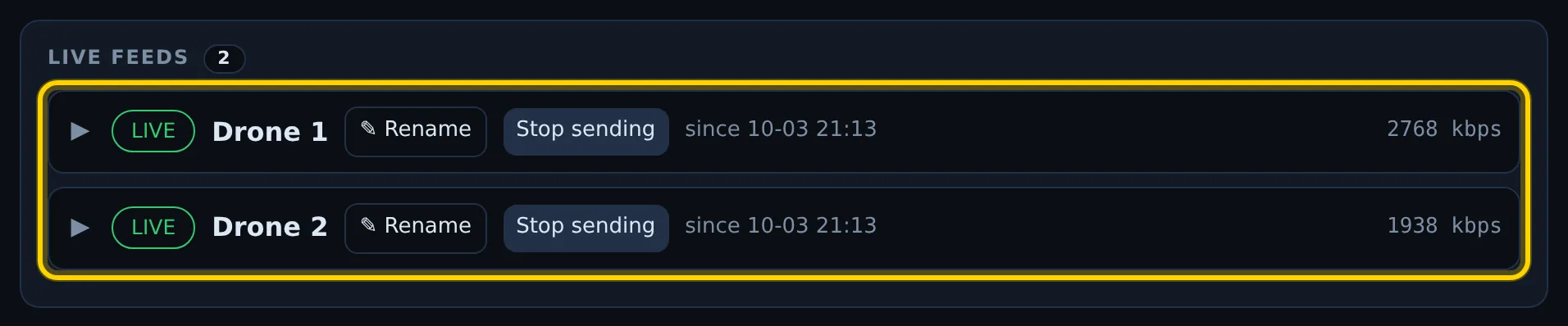
- ✎ Rename — change the name viewers see (it stays after the mission ends).
- Stop sending — take a feed away from viewers right now; the camera is disconnected (it asks first). Send brings it back at once.
- Select a row to watch it and see its speed over the last 15 minutes.
A drone isn't showing up
If a pilot says they are streaming but nothing appears, open the warning under Live feeds — N rejected publish attempts in the last 24 h. Each line shows the time, the address used and the reason (the same words the camera's setup page and the Pilot page show):
| Reason shown | Fix |
|---|---|
unknown_key |
The key is mistyped. Check it. |
| This key was revoked or has expired — ask your admin for a new one | Create a new key. |
| The key has capital letters — type it in lowercase | Keys are lowercase. |
| Pick a different name | The stream name has characters that aren't allowed. Use letters, numbers and dashes. |
| An admin stopped this feed | Someone selected Stop sending for that feed. Select Send in All feeds. |
| Your agency is at its live-feed limit | Your agency has as many live feeds as it is allowed. Stop one, or ask SARSTREAM support to raise the limit. |
If nothing is listed, the camera never reached SARSTREAM: check its internet and the address it uses.
All feeds
All feeds lists every feed your agency has ever used, live or not.
Release frees a feed's name so it can be used again later. If that feed
is streaming right now, Feed in use asks you to type REVOKE first (or
power the camera off).
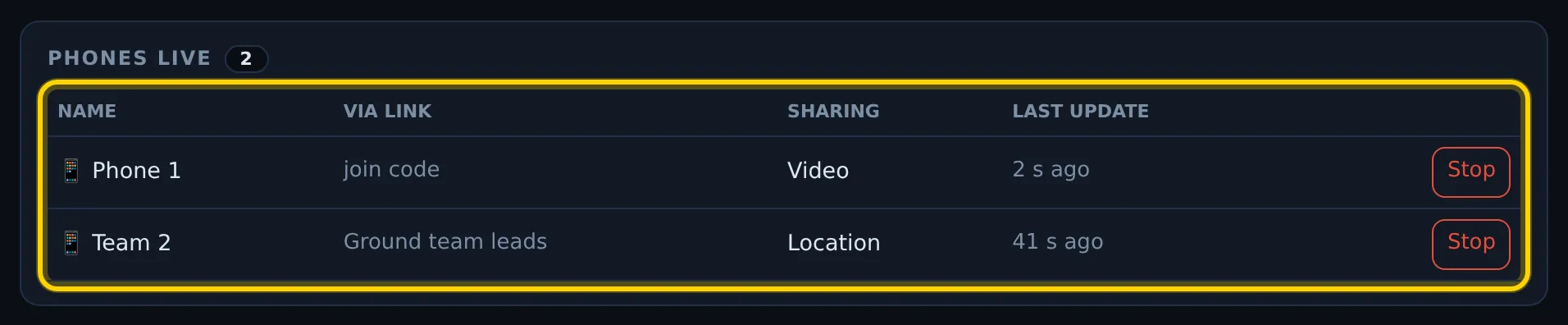
Phones (Go Live)
Phones stream with Go Live from the viewer — no key. You decide who may:
- Join codes card: Allow Go Live turns it on or off for your whole agency. Viewer code can Go Live covers people who joined with the viewer code.
- Viewer links card: the Go Live box on each personal link.
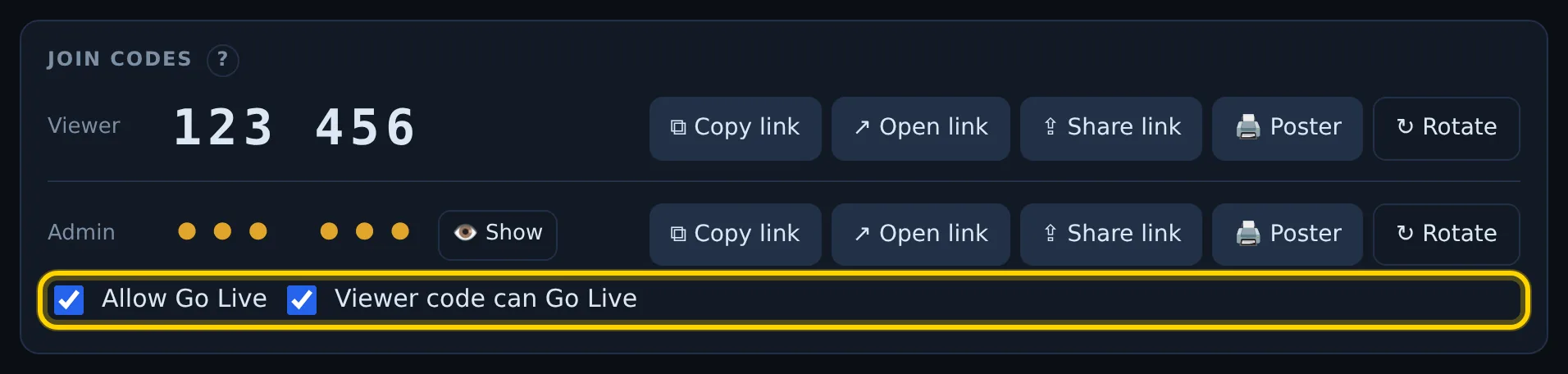
Turning a switch off stops the phones that are live through it within a minute.
While a phone is live, the Phones live card shows it. Stop ends that phone's stream; it can't go live again in this mission.