During a mission
What to do once you are streaming. Most of this page is about the SARSTREAM Pilot page on a DJI controller. To open it again, tap SARStream on the Pilot 2 home screen.
Check you're live
- Pilot page: Stream: shows LIVE and a speed in kbps, in green. The telemetry chip is green (for example telemetry 2s) when the map is getting the drone's position.
- Phone: the red LIVE banner is at the top of the screen.
- Body cam or encoder: the setup page shows your video under 3 · You're on (when you are signed in), or ask someone watching.
If the chip says NO AIRCRAFT TELEMETRY in red, the video is going out but the map can't see the drone. Restart Pilot 2 (swipe it away and reopen).
Battery swap
You don't need to touch the Pilot page.
- Land and power off the drone. Stream: shows drone is off — power it on and streaming will start automatically.
- Swap the battery and power the drone on. Stream: shows restarting stream… and then LIVE again, usually within a minute or two.
If it doesn't come back within 3 minutes, the page shows Stream didn't restart — tap Start. Tap Start stream.
Pause the video
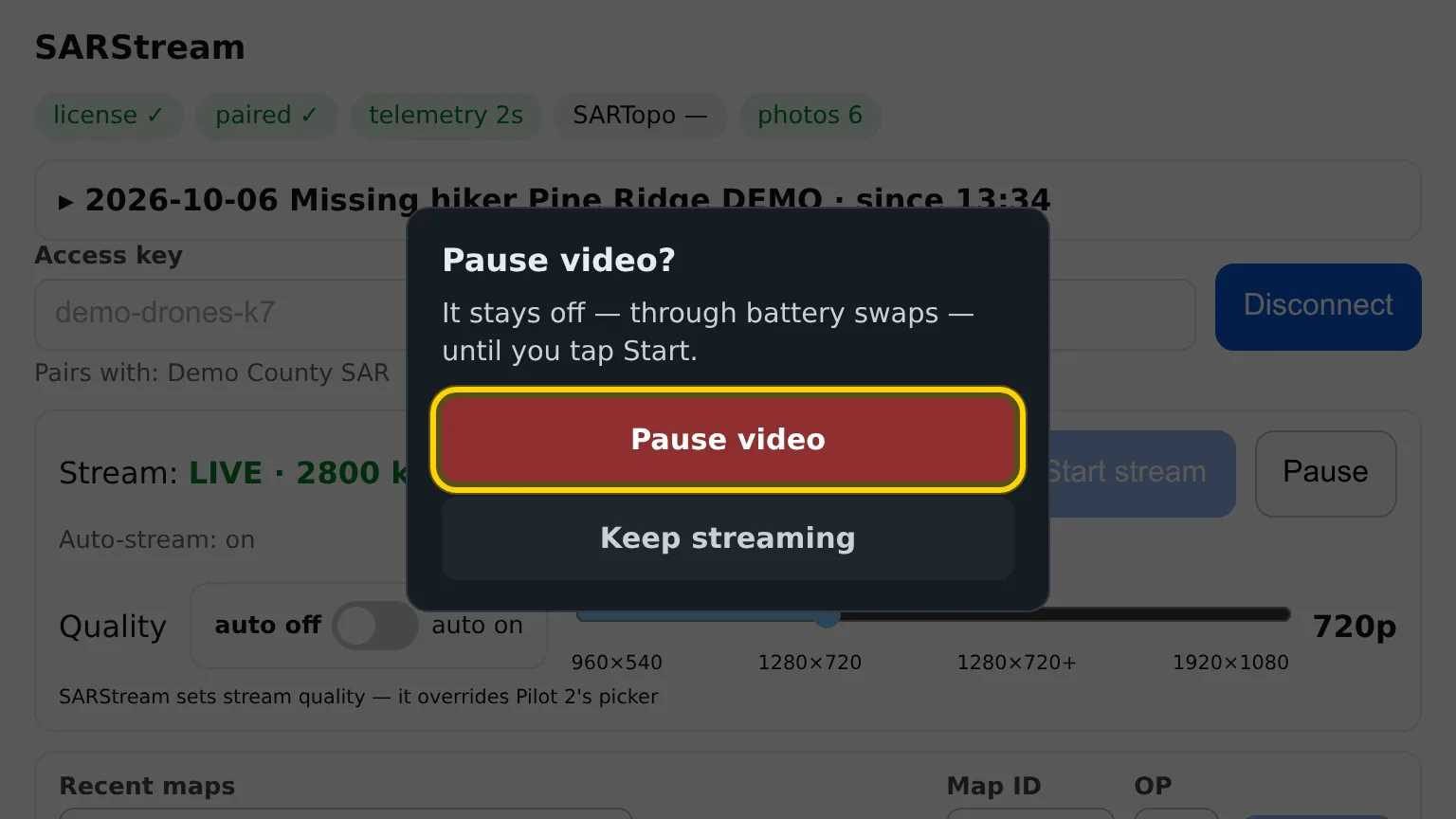
Pause stops your video only. The map position, telemetry and photos keep going. The pause holds through battery swaps, takeoffs and controller restarts.
- On the Pilot page, tap Pause (next to Start stream; it shows while you are live).
-
You see Pause video? — It stays off — through battery swaps — until you tap Start. Tap Pause video. (Keep streaming changes nothing.)
-
An amber line at the top says Video PAUSED — tap Start to resume. Viewers see Paused by pilot on your feed.
To resume, tap Start stream. An admin can also resume it from the admin page, and a pause ends when the mission ends.
If the line says Pausing — video is still on. Tap Pause again, or stop it in Pilot's camera view., tap Pause again. If you started the video from Pilot 2's own camera view, stop it there.
Stop in Pilot 2's camera view is not a pause
SARSTREAM can't tell it from a lost connection, so it starts the video again within about a minute. To keep the video off, use Pause here.
Change the drone name or key
The name and key are locked while you are connected. To change either one:
This pauses your video for everyone watching
Your feed stays dark until you tap Start stream again (or an admin resumes it).
- On the Pilot page, tap Disconnect. You see Pause video? — Pause video and disconnect? Video stays off until you or an admin resume it.
- Tap Pause video and disconnect. (Keep streaming changes nothing.) The page shows Stopping video…, then Access key and Drone name can be edited. If you see The video didn't stop — tap Disconnect again., tap Disconnect again.
- Change the name or the key.
- Tap Connect, then tap Start stream. The video starts again under the new name.
If the video was started from Pilot 2's own camera view, the page says This video was started in Pilot 2's camera view — stop it there, then tap Disconnect.
Fly for another agency (mutual aid)
A controller belongs to whichever agency's key it connected with last. There is no admin step to move it.
- Tap Disconnect (and Pause video and disconnect if you are live).
- In Access key, type the other agency's key. Check that Pairs with: shows their name.
- Tap Connect. Your video now goes to their mission and their viewers. (A pause belongs to a mission, so their mission starts unpaused.)
When the job is done, do the same with your own key to come home.
Only an admin ends a mission
A pilot can't end a mission or start over from the Pilot page. While a mission is open, the Pilot page shows its name and no mission button. If the team is done with the mission, ask an admin to end it.
When the mission ends
When an admin ends the mission, the mission line on the Pilot page changes to Mission ended within a few seconds. When the next mission opens, the page joins it by itself. If you need a mission right now, tap Start mission — it opens one (or joins one someone else just opened).
Share the live view
To let someone near you watch your drone:
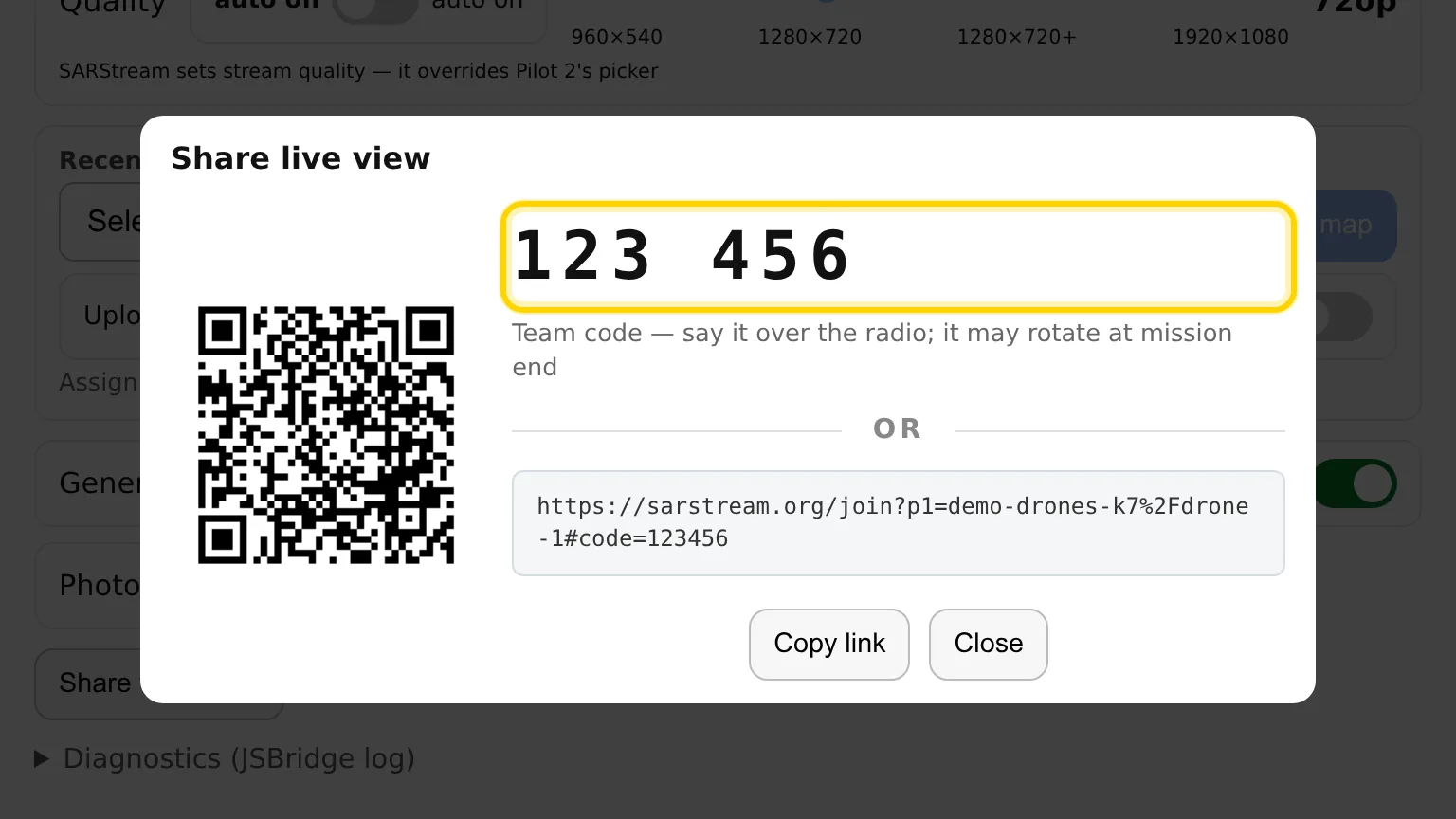
- On the Pilot page, tap Share view (QR).
- Let them scan the QR code, or read them the 6-digit team code over
the radio. They enter it at
sarstream.org/join.
The code may change when the mission ends.
Photos
Photos you take with the drone upload by themselves as small preview images (thumbnails) — you don't need to open the album. The photos chip counts them. To pause uploads, turn off Photo uploads.
Photos are not uploaded when the mission is NOT RECORDING.
SD card
Photos upload from the drone's SD card. Under Stream:, an amber line such as SD card 6 % free — photos stop uploading when it's full shows when less than 10 % is free. SD card FULL — photos won't upload. Swap or clear the card. shows in red when it is full. Swap or clear the card at the next battery swap.
Not recording
A red NOT RECORDING badge means the mission was started as live-only: everyone can watch, but no video, track or photos are saved.
Link or change the SARTopo map
Only if your agency uses SARTopo. The map belongs to the mission — every drone in it draws on the same map.
- Pick the map in Recent maps (the last mission's map is at the top, marked (last mission)), or type its ID in Map ID.
- Tap Link map (the mission has no map yet) or Change map.
-
Changing the map asks Switch this mission's map? — tap Switch, or Keep to stay on the old one.
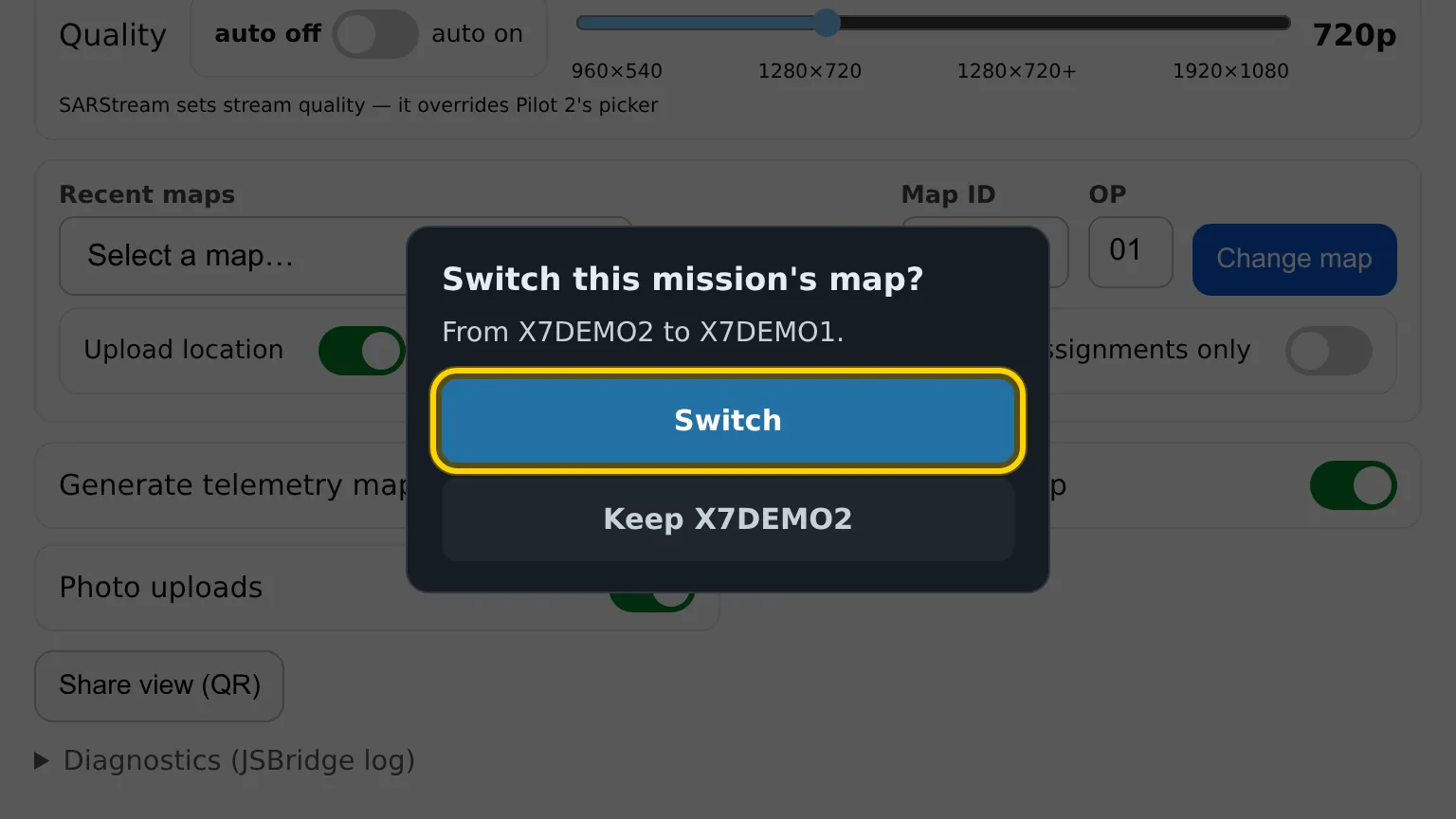
SARSTREAM checks it can reach the map first. If it can't, the note says why and the mission stays on its old map. If an admin changes the map, the Map ID box follows and says Map changed to …. Drone and operator markers and new tracks then go to the new map; what is already on the old map stays there.
Stream quality
The Quality slider sets the video quality: 960×540, 1280×720, 1280×720+ or 1920×1080. The stream starts at 1280×720. Use a lower setting when the connection is weak. Leave auto off.
SARSTREAM's setting wins over the quality picker in Pilot 2's own camera view. The slider only works when SARSTREAM started the video — not after a "Pilot's own live push" fallback.
Leaving the page and logging out
- Back arrow (top of Pilot 2): go back to flying. Video and the map keep running.
- Log Out in Pilot 2's Cloud Service screen ends the connection and stops the video. Do this only when you are done with SARSTREAM on this controller. To connect again, follow Part 1 of the quick start.
The Pilot page, control by control
| Control | What it does |
|---|---|
| Access key, Drone name | Your agency's key and this drone's name. Locked while connected. |
| Connect / Disconnect | Connects this controller to your agency with that name, or disconnects so you can change them. |
| Pairs with: | The agency the typed key belongs to. |
| Mission line and button | The open mission and when it started (Mountain Time). Start mission shows only when no mission is open. |
| Stream: | LIVE with speed, starting…, paused, waiting for cloud link…, drone is off…, and so on. |
| Start stream | Starts the video by hand, and resumes a paused video. Normally not needed — video starts by itself. |
| Pause | Pauses the video (not the map or photos) until Start stream, an admin's Resume, or the end of the mission. |
| Quality | Video quality slider. Leave auto off. |
| Recent maps, Map ID, OP, Link map / Change map | Link this mission to your agency's SARTopo map, or switch it to another (asks once). Only if your agency uses SARTopo. |
| Upload location | Sends the drone's position to the SARTopo map. |
| Download assignments | Shows SARTopo assignments on Pilot 2's map. UAV Assignments only limits it to drone assignments. |
| Generate telemetry map feed | Puts the drone on the SARSTREAM map. Leave on. |
| Other drones on map | Shows other drones' positions on Pilot 2's map. |
| Photo uploads | Pause or resume photo uploads. |
| Share view (QR) | Team code and QR code for someone nearby. |
| Chips: license, paired, telemetry, SARTopo, photos | Green means working. telemetry shows how old the drone's last position is. |
| Diagnostics (JSBridge log) | A technical log. SARSTREAM support may ask you to open it. |
Phone and body cam notes
- Phone: tap Stop to end your stream, and Go Live again to restart it. Keep the screen on while live. See Quick start: Phone.
- Body cam, GoPro, encoder: to rename, stop streaming on the device, pick a new name on the setup page, and start again with the new address. See Quick start: Body cam, GoPro, encoder.