Quick start: run your first mission
You'll end with: a mission started, a pilot streaming, your team watching, and the mission ended.
Takes: about 10 minutes.
Before you start
- You can sign in to the admin page — see Get to the admin page.
- A pilot with a DJI controller, phone or camera is ready to stream.
Steps
-
Sign in. The admin page opens. If no mission is open, it asks No mission is open — start one? Select Start mission — or wait: a mission also starts by itself as soon as a drone or camera starts streaming.

-
Give the pilot a key. Select Publish keys to open the card. Type a key word and who it is for, then select Create key. Tell the pilot the key word, or select 🖨 Card to print a key card. See Pilots, keys & feeds.
-
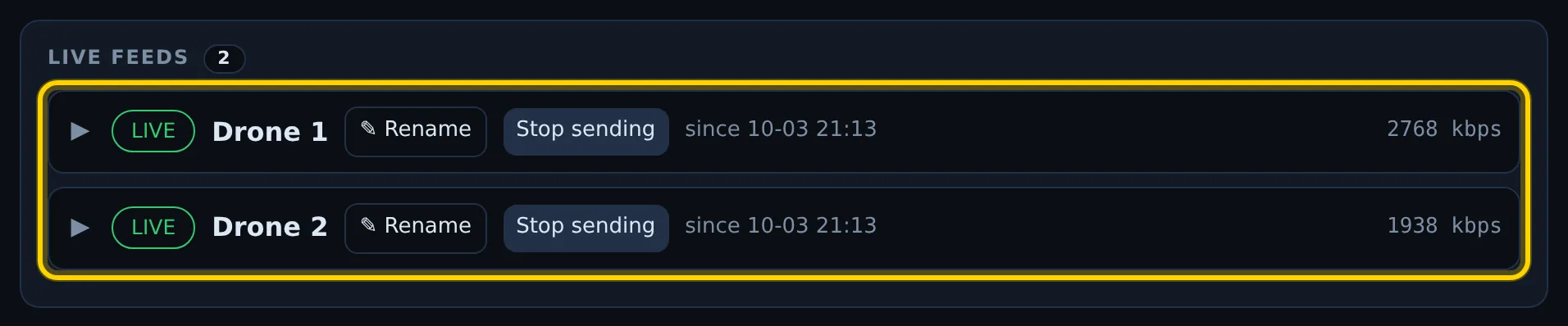
Wait for the feed. When the pilot is streaming, the drone appears in Live feeds with a green LIVE tag.
-
Share it with your team. In Join codes, read out the Viewer code, or select ⇪ Share link to show a QR code, or 🖨 Poster to print one. People enter the code at
sarstream.org/joinor your agency's page.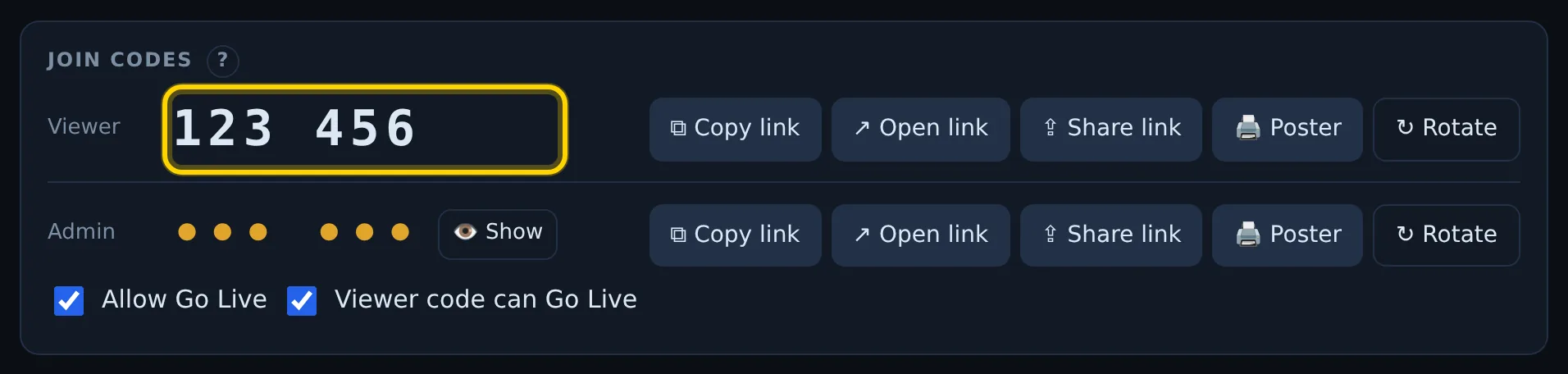
-
Watch it yourself. Select Open Viewer ↗ or Open Map ↗ on the Mission card.
- End the mission. When the job is done and the drones are powered off, select End mission, then End mission again to confirm.
Ending the mission cuts off every viewer
Viewer links stop working and both join codes change. Admins stay signed in.
Check it worked
The Mission card shows NO MISSION, and the old viewer code no longer works.
If it didn't work
- "Still streaming" or "Can't end yet" — a drone or camera is still
streaming. Have the pilots power off, then try again (or type
ENDin the box if something is stuck on). See Missions. - The drone never shows in Live feeds — open the warning under Live feeds that lists rejected publish attempts. See Pilots, keys & feeds.